
You have settled in for the evening. The Premier League is about to kick off, your drink is poured, and you hit play — only to watch a loading spinner where the match should be. Buffering. Again.
If your IPTV keeps buffering, you are not alone. It is the single most common complaint from IPTV users, and the frustrating part is that it can have a dozen different causes. The good news: almost every case of buffering is fixable, and most people solve it within minutes once they know where to look.
I have personally walked thousands of customers through these fixes on WhatsApp support over the years — and the same handful of fixes solve the vast majority of cases. These 10 are ranked from most effective to least. Start at fix number one and work your way down. There is a very good chance your problem is sorted before you reach the end.
If you want the quick version, our troubleshooting page has a condensed step-by-step guide. This article is the deep dive — the why behind each fix, not just the what.
Why Does IPTV Buffer?
Before jumping into fixes, it helps to understand what buffering actually is. When you watch an IPTV stream, your device is downloading video data in real time. Buffering happens when the data cannot arrive fast enough for your device to play it smoothly. Think of it like a tap filling a bath — if water comes in faster than it drains out, everything is fine. If the tap slows down, the bath empties and your stream freezes.
The causes fall into six categories, and each fix below targets one or more of them:
- Slow or unstable internet connection — the most common cause by far. Your broadband speed might be adequate on paper, but real-world performance varies depending on time of day, network congestion, and how many devices are connected.
- Wi-Fi interference — wireless signals degrade through walls, floors, and distance. Your speed test might show 80 Mbps on your phone next to the router, but the Firestick in the back bedroom might only be getting 15 Mbps.
- ISP throttling — some internet service providers deliberately slow down streaming traffic during peak hours. Your speed test looks fine because speed test traffic is not throttled, but actual video data is restricted.
- DNS resolution delays — your ISP's default DNS servers can be slow to resolve the addresses your IPTV app needs, causing delays when loading channels and occasional mid-stream pauses.
- Device performance — older or cheaper devices with limited RAM struggle to decode high-bitrate video, especially 4K content. The device itself becomes the bottleneck.
- Server-side issues — budget IPTV providers overload their servers, especially during popular events. This is the one cause you cannot fix yourself — you need a provider with proper infrastructure.
Fix #1: Switch to Ethernet (Most Effective)
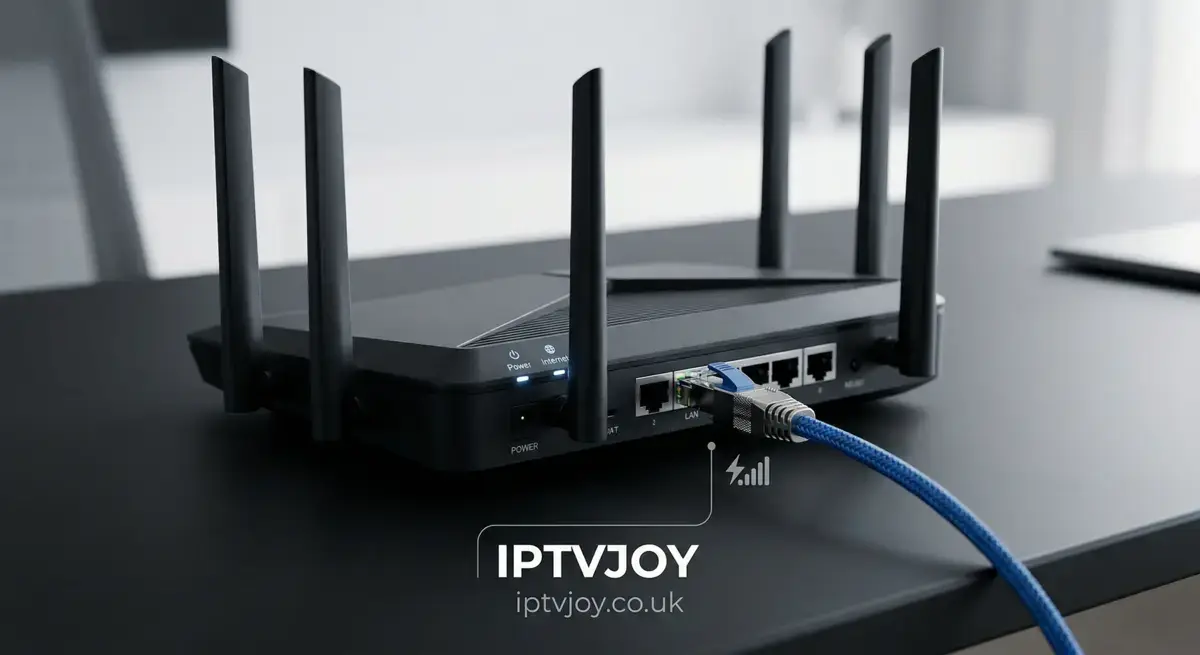
If you take one thing from this entire guide, let it be this: plug in an ethernet cable. Wi-Fi is the number one cause of IPTV buffering, and switching to a wired connection fixes it in roughly 60% of cases we see in support.
The reason is simple. Wi-Fi is a shared, unstable medium. The signal passes through walls and loses strength. Your neighbours' routers compete on the same channels. Every device in your home — phones, laptops, smart speakers, doorbells — fights for airtime on the same radio frequency. Even a microwave oven can interfere with 2.4 GHz Wi-Fi. Ethernet eliminates all of that. It is a dedicated, stable, interference-free connection between your device and your router.
How to Get Ethernet to Your Streaming Device
- Amazon Firestick — The Firestick does not have an ethernet port built in, but Amazon sells an official ethernet adapter for about £15. Plug the adapter into the Firestick's USB port, connect an ethernet cable from the adapter to your router, and you are done. The Firestick automatically switches from Wi-Fi to wired.
- Smart TVs (Samsung, LG, Sony) — Most Smart TVs have an ethernet port on the back panel. Just plug a cable directly from the TV to your router. The TV should detect the wired connection automatically — no configuration needed.
- Android TV boxes — Almost all Android TV boxes have a built-in ethernet port. Plug in and go.
- Router is too far away? — Use powerline adapters. These plug into your electrical sockets and carry network data through your home's electrical wiring. Plug one near your router, one near your TV, connect ethernet cables to each, and you effectively have a wired connection without running a cable across the house. TP-Link AV600 or AV1000 kits work well and cost under £30.
This single change fixes the majority of buffering issues. If you have been battling with settings and restarts and nothing has worked, an ethernet cable is almost certainly the answer.
Fix #2: Test Your Internet Speed
Before blaming your IPTV provider, your device, or your DNS settings, check whether your internet speed is actually sufficient. Go to speedtest.net or fast.com — but do it on the same device you use for IPTV, connected the same way. Testing on your phone over Wi-Fi while your Firestick uses a different Wi-Fi band tells you nothing useful.
Here are the minimum speeds you need for a single IPTV stream:
- SD (480p) — 10 Mbps minimum
- HD (720p–1080p) — 25 Mbps recommended
- Full HD (1080p) — 35 Mbps for consistent quality
- 4K (2160p) — 50 Mbps or higher
These are per-stream figures. If three people in your house are all streaming at the same time, triple the requirement. If your speed test comes back below these thresholds, the fix is straightforward: upgrade your broadband plan or call your ISP and ask why your speed is below what you are paying for. Many ISPs will send an engineer or replace your router if you push them on it.
Also pay attention to the upload speed and ping. For IPTV you mostly care about download speed, but a ping above 100ms or significant jitter (shown on speedtest.net's advanced results) can cause stuttering even when the raw speed looks fine.
Fix #3: Restart Your Router
It sounds almost insultingly simple, but restarting your router genuinely fixes a surprising number of streaming issues. Here is why.
Routers are small computers running firmware. Over days and weeks of continuous operation, they accumulate memory leaks, stale connection tables, and DNS cache entries that can slow down your network. A restart clears all of that and gives the router a fresh start. It also forces the router to re-negotiate its connection with your ISP, which can resolve routing issues.
How to Properly Restart Your Router
- Unplug the router from the power socket — do not just turn it off at the switch, actually pull the plug out.
- Wait 30 seconds. This is not arbitrary — it gives the capacitors inside the router time to fully discharge, which ensures the memory is completely cleared.
- Plug it back in and wait 2-3 minutes for it to fully boot up and re-establish your internet connection.
- Test your IPTV stream again.
If restarting your router consistently fixes the problem but it keeps coming back after a few days, your router may need a firmware update, or it may simply be too old to handle the number of devices on your network. Most ISP-provided routers are designed for basic web browsing, not high-bandwidth streaming across multiple devices simultaneously.
Fix #4: Change Your DNS
DNS (Domain Name System) is the internet's phone book — it translates website names into IP addresses that your device can connect to. Your ISP provides default DNS servers, and they are often slow, overloaded, or even deliberately interfere with certain types of traffic.
Switching to a faster public DNS can noticeably improve channel loading times and reduce mid-stream buffering. The two best options are:
- Google DNS — Primary: 8.8.8.8, Secondary: 8.8.4.4
- Cloudflare DNS — Primary: 1.1.1.1, Secondary: 1.0.0.1
Cloudflare is generally faster (they are a CDN company, so DNS speed is literally their business) but both are significantly better than most ISP defaults.
How to Change DNS on Your Router (Recommended)
Changing DNS on your router means every device in your home benefits automatically. Log into your router's admin page (usually 192.168.1.1 or 192.168.0.1 in your browser), find the DNS settings (often under WAN, Internet, or Network), and replace the existing DNS addresses with the ones above. Save, restart the router, and you are done.
How to Change DNS on Individual Devices
- Amazon Firestick — Settings > Network > select your Wi-Fi network > Forget > reconnect and when it asks for advanced settings, enter the DNS addresses manually.
- Android — Settings > Network & Internet > Private DNS > enter dns.google or one.one.one.one.
- iPhone/iPad — Settings > Wi-Fi > tap the (i) next to your network > Configure DNS > Manual > add the DNS addresses.
- Windows — Settings > Network > Change adapter options > right-click your connection > Properties > IPv4 > enter DNS addresses.
Fix #5: Close Background Apps and Devices
Your internet connection has a fixed amount of bandwidth. Every device and app using it takes a share. If someone in your house is downloading a game update on their PlayStation (which can use 100% of your bandwidth), or your laptop is backing up photos to the cloud, or three phones are streaming TikTok videos — your IPTV stream is fighting for whatever bandwidth is left.
Before a big match or film night:
- Pause any downloads or updates on other devices
- Close streaming apps (Netflix, YouTube, Spotify) on devices you are not using
- Ask the rest of the household to hold off on heavy internet use for the next couple of hours
- On your streaming device itself, close any apps running in the background — on Firestick, go to Settings > Applications > Manage Installed Applications and force-stop anything you are not using
If bandwidth competition is a constant problem in your household, consider upgrading your broadband to a higher speed tier. The cost difference between a 50 Mbps and 150 Mbps plan is often only a few pounds a month, and it makes a huge difference when multiple people are streaming simultaneously.
Fix #6: Reduce Stream Quality
If your internet speed is borderline for the quality you are trying to watch, the simplest fix is to drop the quality one level. Switching from 4K to HD cuts the bandwidth requirement roughly in half — from 50 Mbps down to about 25 Mbps. Switching from HD to SD halves it again.
Most IPTV apps let you choose stream quality in the settings:
- TiviMate — Settings > Playback > Stream type, or long-press a channel and select a lower quality stream if multiple are available.
- IPTV Smarters — Settings > Stream Format > choose between available quality levels.
- Many providers offer the same channel in multiple qualities (HD, SD, 4K) in the channel list. If the 4K version buffers, try the HD version of the same channel.
Be honest about what you actually need. On a 40-inch TV sitting three metres away, the difference between 1080p and 4K is barely noticeable. HD looks excellent on the vast majority of screens at normal viewing distances. Save 4K for the big screen when your connection can handle it.
Fix #7: Use a VPN (If Your ISP Throttles)
Here is a scenario we see constantly in support: your speed test shows 60+ Mbps, your ethernet cable is plugged in, your DNS is changed — and IPTV still buffers, but only during peak evening hours. That is ISP throttling.
Some UK internet service providers use a technique called deep packet inspection to identify streaming traffic and deliberately slow it down during busy periods. Your speed test looks normal because the ISP does not throttle speed test traffic — only video streams.
A VPN solves this by encrypting all your traffic. Your ISP can see that you are using data, but it cannot identify the type of traffic, so it cannot selectively throttle your IPTV streams. The result is that your full connection speed becomes available for streaming.
The best VPNs for IPTV in the UK are covered in our dedicated guide: Best VPN for streaming in 2026. We also have a full walkthrough of using IPTV with a VPN on our IPTV with VPN page.
Important caveat: only use a VPN if you suspect throttling. If your internet is genuinely slow, a VPN will not make it faster — it adds a tiny amount of overhead, so it can actually make things marginally slower. The VPN fix is specifically for the situation where your raw speed is fine but streaming is being targeted.
Fix #8: Clear Your IPTV App Cache
IPTV apps store temporary data — channel logos, EPG (TV guide) data, thumbnails, and stream metadata. Over time this cache grows and can cause the app to slow down, channels to load slowly, or streams to stutter as the app struggles to manage all that stored data alongside the live stream.
Clearing the cache does not delete your settings, playlists, or login details. It just removes the temporary files that the app can re-download as needed.
How to Clear Cache on Firestick
- Go to Settings > Applications > Manage Installed Applications
- Find your IPTV app (TiviMate, IPTV Smarters, etc.)
- Select it and choose "Clear Cache"
- Restart the app
How to Clear Cache on Android
- Go to Settings > Apps > find your IPTV app
- Tap Storage > Clear Cache
How to Clear Cache in TiviMate Specifically
- Open TiviMate > Settings > EPG
- Select "Clear EPG Cache"
- Go back to Settings > General and restart the app
Make a habit of clearing cache every couple of weeks, especially if you notice channels taking longer to load or the app feeling sluggish. It takes 30 seconds and often makes a noticeable difference.
Fix #9: Update Your IPTV App
Outdated apps are a surprisingly common cause of streaming problems. IPTV apps like TiviMate and IPTV Smarters regularly release updates that fix bugs, improve stream handling, and add support for new codecs. Running an old version means you are potentially dealing with bugs that were fixed months ago.
- TiviMate — Check for updates in the Google Play Store or sideload the latest APK. Our TiviMate setup guide covers the full process.
- IPTV Smarters — Update through the Play Store or App Store. Our IPTV Smarters setup guide walks through the steps.
- Firestick apps — Go to the App Store on your Firestick, find the app, and check for updates. For sideloaded apps, you will need to download and install the latest APK manually. Our Firestick setup guide explains how.
While you are at it, make sure the firmware on your streaming device is up to date too. Firestick, Smart TV, and Android TV box manufacturers all release firmware updates that can improve Wi-Fi performance, app stability, and video decoding.
Fix #10: Contact Your Provider
If you have worked through every fix above and your IPTV still buffers, the problem is almost certainly on the provider's end. Overloaded servers, poor infrastructure, and lack of maintenance are the hallmarks of budget IPTV providers — and no amount of ethernet cables or DNS changes on your end will fix that.
A good IPTV provider should have:
- Dedicated servers with load balancing — not shared hosting that collapses during peak demand
- Multiple server locations with automatic failover
- Responsive support that actually helps, not a contact form that gets answered three days later
- Infrastructure that can handle major events — Premier League matchdays, boxing nights, new film releases — without degradation
At IPTVJoy, we run dedicated server infrastructure specifically designed for live streaming at scale. Our support is available 24/7 on WhatsApp — not email, not a ticket system — real people who respond in minutes, not days. If something is not right with your stream, get in touch and we will sort it.
If you are currently with a provider that buffers regularly during peak times, it might be worth trying a service that does not. Our free 24-hour trial lets you test IPTVJoy on your own connection with no payment details required. See the difference for yourself.
Quick Reference: All 10 Fixes at a Glance
| Fix | Difficulty | Effectiveness | Time |
|---|---|---|---|
| 1. Switch to Ethernet | Easy | Very High | 5 min |
| 2. Test Internet Speed | Easy | Diagnostic | 2 min |
| 3. Restart Router | Easy | Medium | 3 min |
| 4. Change DNS | Medium | High | 10 min |
| 5. Close Background Apps | Easy | Medium | 2 min |
| 6. Reduce Stream Quality | Easy | Medium | 1 min |
| 7. Use a VPN | Medium | High (if throttled) | 15 min |
| 8. Clear App Cache | Easy | Medium | 2 min |
| 9. Update IPTV App | Easy | Low–Medium | 5 min |
| 10. Contact Provider | Easy | Depends | 5 min |
Still Buffering? The Problem Might Be Your Provider
We have said it a few times in this guide, and it is worth repeating: if your internet connection is solid, your device is capable, and you have worked through every fix above — the problem is on the provider's end. No amount of troubleshooting on your side can fix an overloaded server that your provider refuses to upgrade.
This is the single biggest difference between a budget IPTV provider and a properly-built one like IPTVJoy. We invest in server infrastructure because a buffer-free experience during peak demand is what keeps customers. Over 45,000 live channels and 80,000 VOD titles, all delivered on dedicated servers with load balancing and automatic failover.
Curious whether it would actually be any different? Try our free 24-hour trial — activate it during peak hours and compare it to what you are used to. No payment details, no commitment. If it buffers, you have lost nothing. If it does not — and we are confident it will not — you will know what buffer-free IPTV actually feels like.
Have a look at our pricing plans or message us on WhatsApp if you have any questions. We reply in minutes, not days.
Share This Article
Comments (6)
Ethernet cable fixed everything for me. I was pulling my hair out for weeks — tried every setting in TiviMate, restarted the router a hundred times, even bought a new Firestick thinking the old one was broken. Turns out the Wi-Fi signal in my living room was just rubbish. Bought a £7 ethernet adapter for the Firestick and a 10 metre cable. Zero buffering since. Genuinely wish I had done this months ago.
Is it true that BT throttle IPTV traffic? My speed test shows 65 Mbps but streams still buffer during the evening, especially on match nights. Works perfectly at 2pm on a Tuesday but falls apart at 8pm on a Saturday. That sounds like throttling to me but I am not sure how to prove it.
Hi Sarah! That pattern — fine during the day, problems in the evening — is a classic sign of ISP throttling. The easiest way to test it is to connect through a VPN and try streaming again at the same time of day. If the buffering stops with the VPN on, your ISP is throttling streaming traffic. Our VPN guide covers the best options and how to set them up.
Quick question about the TiviMate buffer settings — I have seen people saying you should set the buffer size to 2048 or even higher in the player settings. Does that actually help or is it just a placebo? I have a Firestick 4K Max with 2 GB RAM so I am not sure how much headroom there is.
Hi Marcus! Increasing the buffer size in TiviMate can help if the issue is micro-buffering — those brief pauses every few minutes. Try setting it to 1000ms or 2000ms in TiviMate settings under Playback. But if the buffering is constant and long, a bigger buffer just delays the same problem. In that case focus on the connection itself — ethernet, DNS, and checking for throttling are more likely to fix it properly.
Changed my DNS to Cloudflare (1.1.1.1) on my router and the difference was immediate. Channels that used to take 5-6 seconds to load now come up in under 2 seconds. Did not expect such a big improvement from something so simple. Thanks for the guide!