IPTV EPG Not Loading? How to Fix Your Programme Guide
A blank programme guide is one of the most frustrating IPTV problems — you can watch channels, but you have no idea what is on or what is coming up next. The good news is that EPG issues are almost always easy to fix once you know where to look.
Follow the steps below in order. Most people get their EPG working again within a few minutes.
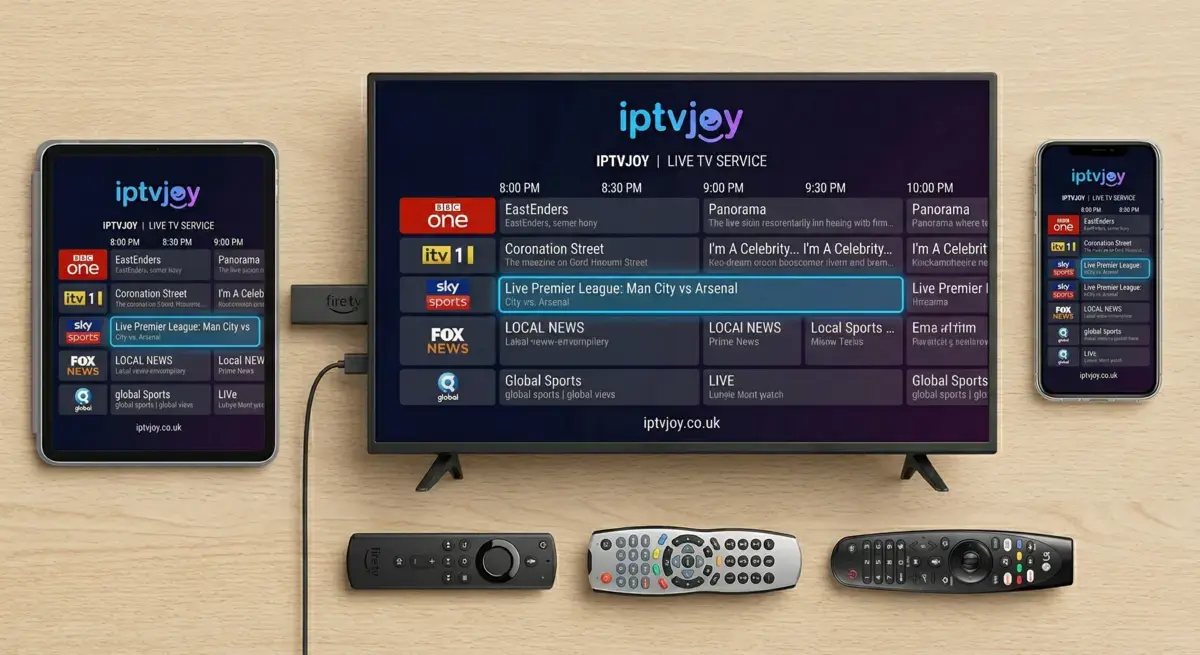
EPG problems are easy to fix — follow the steps below
What Is an EPG?
EPG stands for Electronic Programme Guide. It is the on-screen TV guide built into your IPTV app that shows you what is currently playing on each channel, what is coming up next, and the full schedule for the day. Think of it as a digital version of the old newspaper TV listings — but interactive, searchable, and updated automatically.
Without a working EPG, you can still watch channels, but you are essentially flicking through them blind. Fixing your EPG gives you back full control over what you watch and when.
Why Your IPTV EPG Has Stopped Working
Before jumping into fixes, it helps to understand what causes EPG problems in the first place. Here are the five most common reasons your programme guide is blank or not loading.
EPG URL Not Set
Most IPTV apps require an EPG URL to be entered separately from your playlist. If you have only added your M3U or Xtream Codes login but skipped the EPG source, the programme guide will be completely blank. This is the single most common reason people see an empty EPG after setting up a new device.
EPG Source Temporarily Down
EPG data comes from external servers that compile TV schedules from multiple sources. These servers occasionally go offline for maintenance or experience high traffic, especially during major sporting events. When the source is down, your app cannot pull new guide data, so it shows blank or outdated listings.
App Cache Needs Clearing
IPTV apps cache EPG data locally so they do not need to download it every time you open the app. If the cached data becomes corrupted or outdated, the guide can appear blank, show old listings, or display the wrong times. Clearing the cache forces a fresh download from the EPG source.
Wrong Time Zone
EPG data uses time stamps to match programmes to the correct time slots. If your IPTV app or device is set to the wrong time zone, the guide data might appear to be missing when it is actually there — just shifted to the wrong hours. This is especially common after travelling or setting up a new device.
EPG Has Not Synced Yet
After adding a new playlist or setting up a new device, the EPG data does not appear instantly. Most apps need to download and parse the full EPG file, which can take anywhere from a few seconds to several minutes depending on the size of your channel list and your internet speed. Give it time before assuming something is wrong.
How to Fix IPTV EPG Not Loading
Work through these fixes in order. Start with the most common cause and move on only if it does not solve the problem.
Check Your EPG URL Is Entered Correctly
Open your IPTV app settings and look for the EPG or XML Guide section. Make sure the EPG URL from your provider is entered correctly — copy and paste it from your setup email rather than typing it manually. Even a single wrong character will prevent the guide from loading. If you are using Xtream Codes, the EPG URL is usually provided alongside your username, password, and server URL.
Force Refresh the EPG Data
Most IPTV apps have a manual EPG update option. Go to your app settings, find the EPG section, and tap Update or Refresh. This forces the app to download fresh guide data from the source. In some apps, you may need to wait a minute or two for the download to complete. If the refresh button is greyed out, the app may already be downloading — wait for it to finish.
Clear App Cache and Restart
On Firestick and Android devices, go to Settings, then Applications, find your IPTV app, and select Clear Cache. After clearing the cache, force-close the app completely and reopen it. The app will rebuild its EPG database from scratch. This resolves most issues caused by corrupted cached data.
Check Your Internet Connection
EPG files can be several megabytes in size, so a slow or unstable connection can cause the download to fail silently. Run a speed test on the same device you use for IPTV. If your connection is below 5 Mbps or dropping packets, restart your router and try the EPG refresh again once your connection stabilises.
Try a Different EPG Source URL
Some IPTV providers offer multiple EPG source URLs. If your primary EPG source is not loading, ask your provider if they have an alternative. You can also check whether your provider offers EPG through their Xtream Codes API, which some apps handle differently from a standalone XML EPG URL.
Contact Your IPTV Provider
If none of the above fixes work, the issue is likely on the provider's side — the EPG source may be down or your account may need to be refreshed. Get in touch with your provider's support team. With IPTVJoy, you can reach us anytime via our contact page or WhatsApp for a fast resolution.
App-Specific EPG Fixes
Different IPTV apps handle EPG data in slightly different ways. Here are targeted fixes for the most popular players.
TiviMate
Go to Settings, then EPG. Make sure the EPG source is listed and enabled. Tap Update EPG to force a refresh. If the guide is still blank, try removing and re-adding your playlist — TiviMate will re-download the EPG automatically. Check that your EPG time shift is set to 0 unless you specifically need an offset.
IPTV Smarters Pro
Open the app and go to Settings, then Player Settings. Look for EPG Time Shift and make sure it is set correctly for your time zone. To refresh the EPG, go back to the main screen, tap the three-dot menu, and select Refresh. If the guide remains empty, log out, clear the app cache, and log back in with your Xtream Codes credentials.
TiviMate Lite / XCIPTV / OTT Navigator
These apps pull EPG data from the playlist source automatically. If your EPG is blank, go to the playlist settings and ensure the EPG URL is filled in. In OTT Navigator, go to Settings, then Providers, select your provider, and tap Update EPG. In XCIPTV, go to Settings and select Refresh and Reload to force a full EPG re-download.
Using a different app? Check our setup guides for device-specific instructions, or contact us and we will walk you through it.
EPG Not Loading — Frequently Asked Questions
Quick answers to the most common questions about IPTV programme guide problems.
Why is my IPTV EPG blank?
The most common reason is that the EPG URL has not been entered in your app settings. Most IPTV apps require the EPG source to be added separately from your playlist or Xtream Codes login. Check your provider's setup email for the EPG URL and add it in your app's EPG settings. If the URL is already there, try forcing a refresh — the EPG source may have been temporarily unavailable when your app last tried to download it.
How do I update the EPG on my IPTV app?
In most IPTV apps, go to Settings and look for an EPG section with an Update or Refresh button. In TiviMate, it is under Settings then EPG then Update EPG. In IPTV Smarters, use the three-dot menu and select Refresh. In OTT Navigator, go to Settings, Providers, your provider, then Update EPG. After tapping refresh, wait a minute or two for the download to complete — large channel lists can take time.
Why does my EPG show the wrong times?
EPG time mismatches are almost always caused by a wrong time zone setting. Check your device's time zone in system settings and make sure it matches your actual location. Then check your IPTV app for an EPG Time Shift option — set it to 0 unless you specifically need an offset. If you are in the UK and seeing times that are one hour off, your device may be set to UTC instead of GMT/BST.
Why does the EPG only show for some channels?
EPG data is matched to channels using channel IDs. If some channels show guide data and others do not, it usually means those channels are not mapped in the EPG source. This is a provider-side issue — the EPG feed does not include listings for every channel. Contact your provider to ask if they can add the missing channels to the EPG.
Does IPTVJoy include EPG with its subscriptions?
Yes. All IPTVJoy subscriptions include a full Electronic Programme Guide covering thousands of channels. The EPG is built into your playlist and updates automatically. If you are having trouble with it, contact our support team and we will sort it out for you within minutes.
Have a question that is not covered here? Check our full FAQ or get in touch.
Tired of a Blank EPG? — Switch to IPTV With a Proper Programme Guide
If your current provider cannot keep the EPG running, it might be time for a change. IPTVJoy includes a full Electronic Programme Guide with every subscription — covering over 45,000 live channels with accurate, auto-updating listings. Try it free for 24 hours — no payment details required.
No credit card required • Cancel anytime • Trusted by thousands