Xtream Codes Not Working? Quick Fixes
Xtream Codes login errors are frustrating, but they are almost always easy to fix. Whether you are seeing “invalid login”, “connection failed”, or your app simply will not load any channels, this guide covers every common cause and walks you through the solution.
Follow the steps below in order — most Xtream Codes issues are resolved within a couple of minutes.
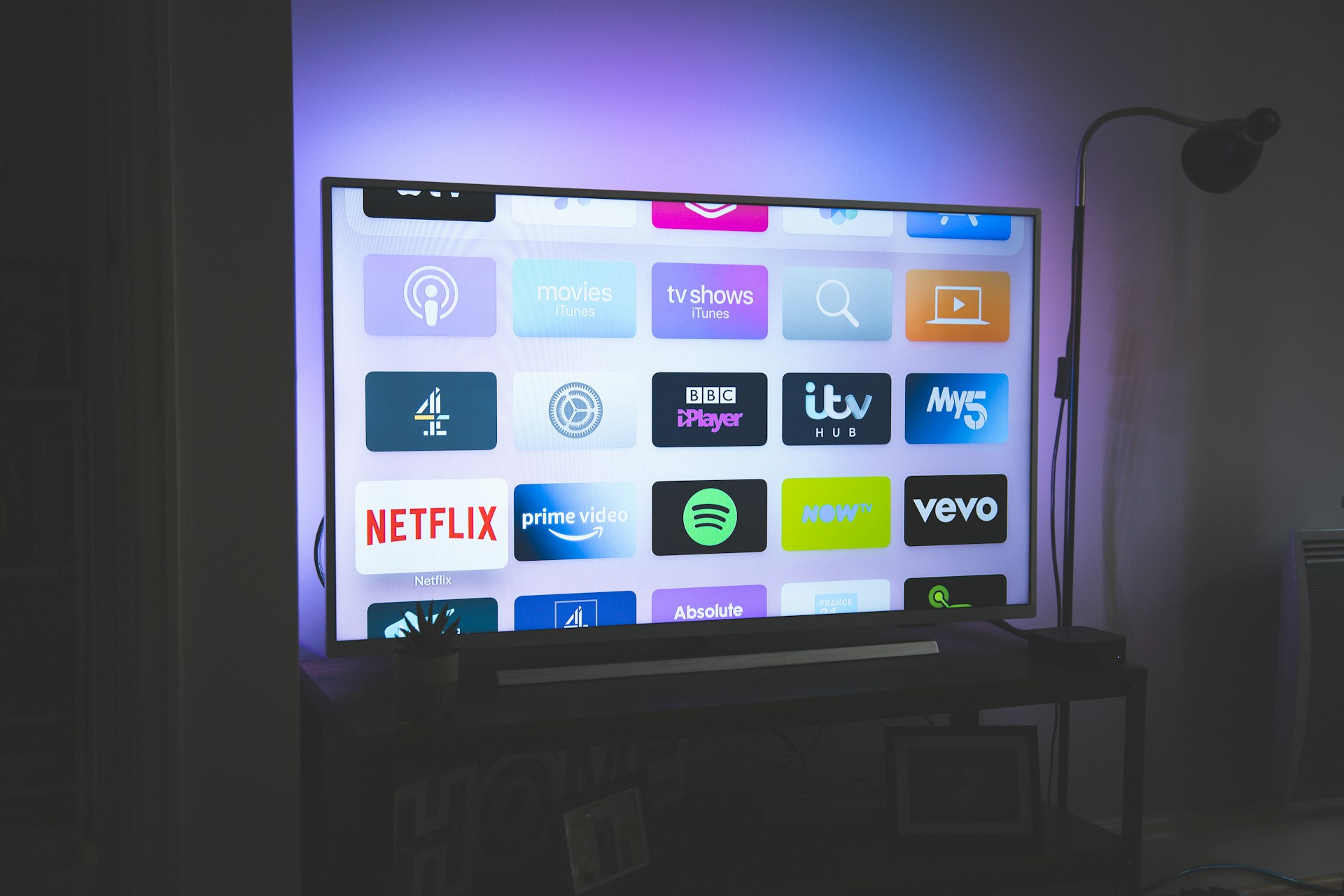
Fix Xtream Codes login errors in minutes — follow the steps below
Common Xtream Codes Errors
Understanding the error helps you apply the right fix. Here are the most common reasons Xtream Codes stops working.
Invalid Login / Wrong Credentials
The most common Xtream Codes error is simply wrong login details. A single extra space, a missing character, or a typo in the server URL will cause an immediate login failure. This happens most often when people type their credentials manually instead of copying and pasting from the provider's email.
Expired Subscription
When your IPTV subscription expires, your Xtream Codes credentials stop working immediately. Your app will show an error like "User not found" or "Authorization failed". Check the expiry date in your original purchase email, or log into your provider's client portal to see your subscription status.
Server URL Changed
IPTV providers occasionally change their server URLs — sometimes for maintenance, sometimes to move to better infrastructure. When the URL changes, your app keeps trying to connect to the old address and fails. Your provider should have sent you an updated URL by email or message.
App Needs Updating
IPTV apps that use the Xtream Codes API — like TiviMate, XCIPTV, and Smarters — need to be kept up to date. An outdated app may not support the current API format, which causes connection errors or a blank channel list. Check your app store for updates, or uninstall and reinstall the latest version.
DNS or Network Blocking
Some internet service providers block access to certain server URLs used by IPTV providers. If you can access the internet normally but your Xtream Codes connection fails, try changing your DNS servers to Google (8.8.8.8) or Cloudflare (1.1.1.1). This bypasses ISP-level DNS blocks.
How to Fix Xtream Codes — Step by Step
Start with the first step and work down. The most common fix is simply re-entering your credentials correctly.
Double-Check Your Credentials
Open the email from your IPTV provider and carefully copy the username, password, and server URL. Paste them directly into your app — do not retype them. Watch out for trailing spaces after the username or password, and make sure the server URL includes http:// (not https://) and the correct port number.
Verify Your Subscription Is Active
Check whether your subscription has expired. Look at the purchase confirmation email for your renewal date. If your provider has a client portal, log in there to check your status. If it has expired, renew it and your credentials will start working again immediately.
Check for a New Server URL
Search your email inbox for recent messages from your IPTV provider. If they have changed the server URL, you will find an email with the updated address. Update the server URL in your IPTV app settings — keep the same username and password, just change the URL.
Update or Reinstall Your IPTV App
Go to your device's app store and check for updates to your IPTV player. If an update is available, install it and try again. If there are no updates and the app is still not working, uninstall it completely, reinstall, and re-enter your Xtream Codes credentials from scratch.
Change Your DNS Settings
If your credentials are correct and your subscription is active, your ISP might be blocking the server. Change your device's DNS to Google (8.8.8.8 and 8.8.4.4) or Cloudflare (1.1.1.1 and 1.0.0.1). On a Firestick, go to Settings, then Network, then select your network and change the DNS.
Try a Different IPTV App
Install a different Xtream Codes-compatible app — TiviMate, XCIPTV, or OTT Navigator — and enter your same credentials. If the new app works, the problem is with your original player, not your Xtream Codes login. This is a quick way to rule out app-specific bugs.
How to Enter Xtream Codes Credentials Correctly
When you add an Xtream Codes login to your IPTV app, you need three pieces of information. Getting any one of them wrong will cause a login failure. Here is exactly what to check:
Starts with http:// and includes a port number (e.g. http://example.com:8080). Do not add a trailing slash.
Exactly as provided — case-sensitive, no spaces before or after.
Copy and paste directly. Passwords are case-sensitive and may contain special characters.
Top tip: Always copy and paste your credentials from the provider's email rather than typing them. Long-press to select the text on mobile, or use Ctrl+C / Cmd+C on desktop. This avoids the single most common cause of Xtream Codes login failures.
When to Contact Your IPTV Provider
If you have tried all the fixes above and your Xtream Codes login still is not working, the issue is likely on the provider's side. Contact support if:
- Your credentials are definitely correct but you still get an invalid login error
- Your subscription is active but the server rejects your connection
- You suspect the server URL has changed but have not received an update
- The same credentials work in one app but not another
- You are seeing an error message you have not seen before
With IPTVJoy, our support team responds within minutes. You can contact us here or message us on WhatsApp and we will check your credentials and subscription status right away.
Xtream Codes — Frequently Asked Questions
Quick answers to the most common Xtream Codes login and connection questions.
Why does Xtream Codes say invalid login?
The "invalid login" error means the server rejected your credentials. This is almost always caused by a typo in the username, password, or server URL. Copy and paste your credentials directly from the email your provider sent — do not retype them manually. If your details are definitely correct, your subscription may have expired or your provider may have changed the server URL.
How do I fix Xtream Codes connection failed?
"Connection failed" means your app cannot reach the server at all. First, check your internet connection is working. Then verify the server URL is correct and includes the port number (e.g. http://example.com:8080). If both are fine, try changing your DNS to 8.8.8.8 — your ISP may be blocking the server. You can also try a different IPTV app to rule out app-specific issues.
Do I need to update my Xtream Codes details?
Your Xtream Codes credentials only change if your provider issues new ones — usually after a server migration. Check your email for any recent messages from your provider with updated login details. If you have not received anything and your credentials are not working, contact your provider's support team to confirm your current details.
Which IPTV apps support Xtream Codes?
Most popular IPTV apps support the Xtream Codes API, including TiviMate, XCIPTV, IPTV Smarters Pro, OTT Navigator, and GSE Smart IPTV. When adding your subscription, look for the "Xtream Codes" or "Xtream Codes API" login option rather than the M3U playlist option — it gives you a better EPG (electronic programme guide) and category sorting. Check our setup guides for step-by-step instructions on each app.
Have a question that is not covered here? Check our full FAQ or get in touch.
Want IPTV That Just Works? — Instant Credentials, Zero Hassle
If you are constantly fighting with login errors and unreliable connections, it might be time for a better provider. IPTVJoy sends your Xtream Codes credentials instantly after purchase, supports all major IPTV apps, and includes 24/7 support to help you get set up. Try it free for 24 hours.
No credit card required • Cancel anytime • Trusted by thousands