IPTV Not Working? Here's How to Fix It
We know how frustrating it is when your IPTV stops working — especially when you have just sat down to watch something. The good news is that most IPTV problems have a simple fix. This guide covers the most common reasons and walks you through solving each one.
Work through the steps below in order. Most people get back to streaming within a few minutes.
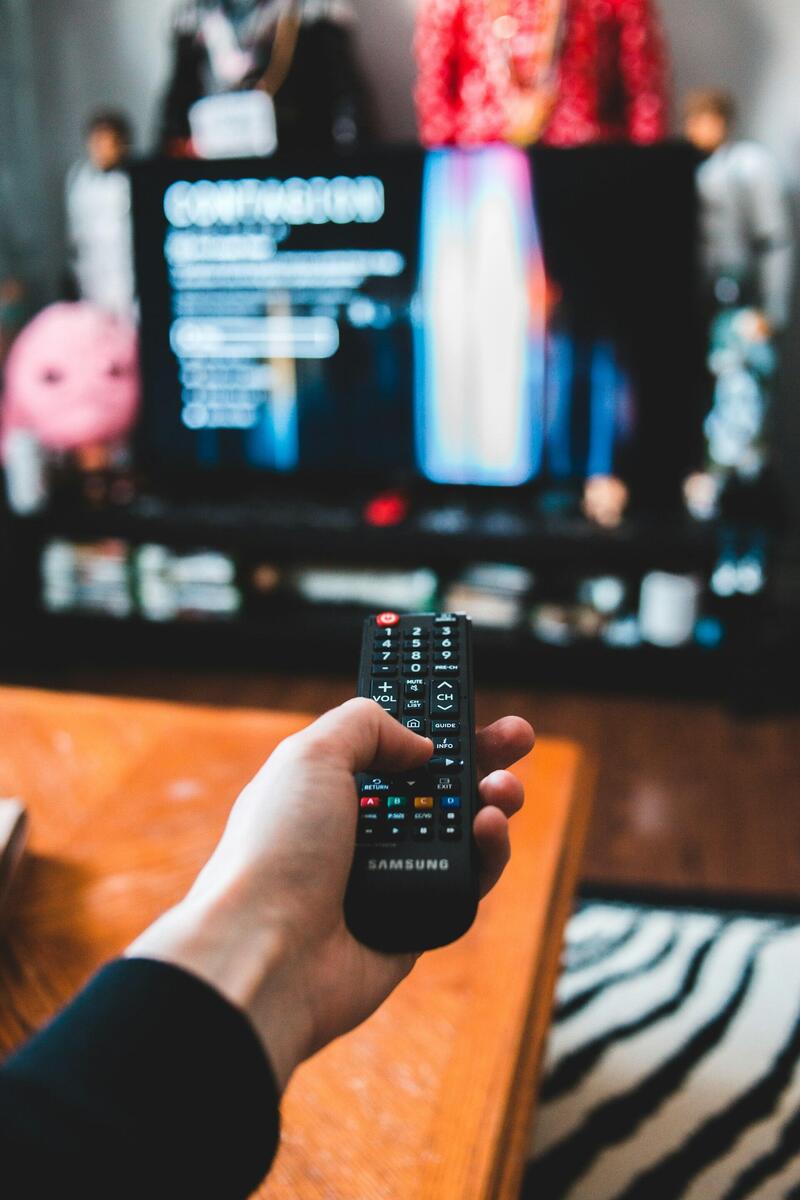
Most IPTV problems have a simple fix — follow the steps below
Why Has Your IPTV Stopped Working?
Before you start troubleshooting, it helps to understand what might be causing the problem. Here are the five most common reasons IPTV stops working.
Expired Subscription
IPTV subscriptions run on a fixed period — monthly, quarterly, or yearly. When yours expires, your playlist stops loading immediately. Most providers do not send a reminder before expiry, so it catches people off guard. Check your purchase confirmation email for the renewal date, or log into your provider's portal.
Server Maintenance or Outage
IPTV providers perform server maintenance, especially after major sporting events or when scaling infrastructure. During maintenance, some or all channels may go offline temporarily. This usually resolves within a few hours. If your provider has a status page or Telegram group, check there first.
Internet Connection Issues
IPTV requires a stable internet connection — at least 10 Mbps for HD and 25 Mbps for 4K. If your broadband is down, slow, or dropping packets, your IPTV will not load or will buffer endlessly. Test your connection speed before blaming the IPTV service.
App Crash or Outdated Player
IPTV players like TiviMate, XCIPTV, and Smarters occasionally crash or develop bugs after an update. If your app was working fine yesterday and suddenly is not, try force-closing it and reopening. If that does not help, clear the app cache or reinstall it entirely.
Wrong Login Credentials
If you recently received new login details — or if you are setting up a new device — double-check your username, password, and server URL. Even a single extra space or wrong character will cause a login failure. Copy and paste from the original email rather than typing them manually.
Step-by-Step Fixes for IPTV Not Working
Work through these in order. Start with the quickest checks and move to the more involved fixes only if the simple ones do not solve it.
Check Your Subscription Status
Log into your IPTV provider's portal or check your email for the last payment confirmation. If your subscription has expired, renew it and your playlist will reactivate within minutes. This is the number one cause of IPTV suddenly stopping.
Test Your Internet Connection
Run a speed test on the same device you use for IPTV. You need at least 10 Mbps for HD and 25 Mbps for 4K. If your speed is below these numbers, restart your router and try again. If it is still slow, contact your broadband provider.
Restart Your Device and App
Power off your streaming device completely — not just sleep mode. Wait 30 seconds, then power it back on. Open your IPTV app and try again. This clears temporary memory issues and re-establishes network connections. It fixes more problems than you would expect.
Clear App Cache or Reinstall
On Firestick and Android: go to Settings, then Applications, find your IPTV app, and select Clear Cache. If that does not help, uninstall the app and reinstall it from scratch. You will need to re-enter your login credentials after reinstalling.
Re-Enter Your Login Details
Open your IPTV app settings and carefully re-enter your username, password, and server URL. Copy and paste from your provider's email to avoid typos. Make sure there are no trailing spaces. If your provider uses Xtream Codes, ensure the server URL starts with http:// and includes the port number.
Try a Different IPTV Player
If one app is not working, try another. Install TiviMate, XCIPTV, or OTT Navigator and enter the same credentials. If the new app works, the problem is with your original player, not the IPTV service. Check for updates or switch to the app that works.
When to Contact Your IPTV Provider
If you have worked through all the steps above and your IPTV is still not working, the problem is most likely on the provider's side. Here are the signs that you need to get in touch:
- Your subscription is active but no channels load on any device
- You have tried multiple IPTV apps and none of them work with your credentials
- Your internet is fast and stable but streams will not start
- You are seeing an error message you do not recognise
- All channels went down at the same time (likely a server issue)
With IPTVJoy, our support team is available around the clock. You can contact us here or message us on WhatsApp for a fast response. We typically resolve issues within minutes, not hours.
IPTV Not Working — Frequently Asked Questions
Quick answers to the most common questions about IPTV problems.
Why has my IPTV stopped working?
The most common reason is an expired subscription — check your renewal date first. If your subscription is active, it could be a temporary server outage, an internet connection issue, or a problem with your IPTV app. Work through the fixes above in order, starting with the simplest.
IPTV not working on Firestick — what do I do?
Start by restarting your Firestick: hold the Select and Play/Pause buttons together for 5 seconds. Then clear the cache of your IPTV app (Settings > Applications > Manage Installed Applications > your app > Clear Cache). If that does not fix it, uninstall and reinstall the app, then re-enter your login details. Check our Firestick setup guide for detailed instructions.
Why are all my IPTV channels down?
If every single channel is down, it is almost certainly a server-side issue or an expired subscription — not a problem with your device. Check your subscription status first. If it is active, your provider may be performing maintenance. Wait an hour and try again. If the problem persists, contact support.
How do I refresh my IPTV playlist?
In most IPTV apps, go to Settings and look for "Update Playlist" or "Refresh EPG". In TiviMate, go to Settings > Playlists > your playlist > Update Playlist. In XCIPTV, go to Settings > Refresh and reload. If your app does not have a refresh option, remove the playlist and re-add it with your login credentials.
Is my IPTV subscription expired?
Check the email your provider sent when you purchased your subscription — it will include the start and end date. If you have access to a client portal, log in there to see your current status. With IPTVJoy, you can check your subscription status on our contact page or message us on WhatsApp and we will check for you instantly.
Have a question that is not covered here? Check our full FAQ or get in touch.
Tired of Unreliable IPTV? — Switch to IPTV That Actually Works
If your current provider keeps going down, it might be time for a change. IPTVJoy runs on dedicated servers with 99.9% uptime, serves over 45,000 live channels in up to 4K, and comes with genuine 24/7 support. Try it free for 24 hours — no payment details required.
No credit card required • Cancel anytime • Trusted by thousands